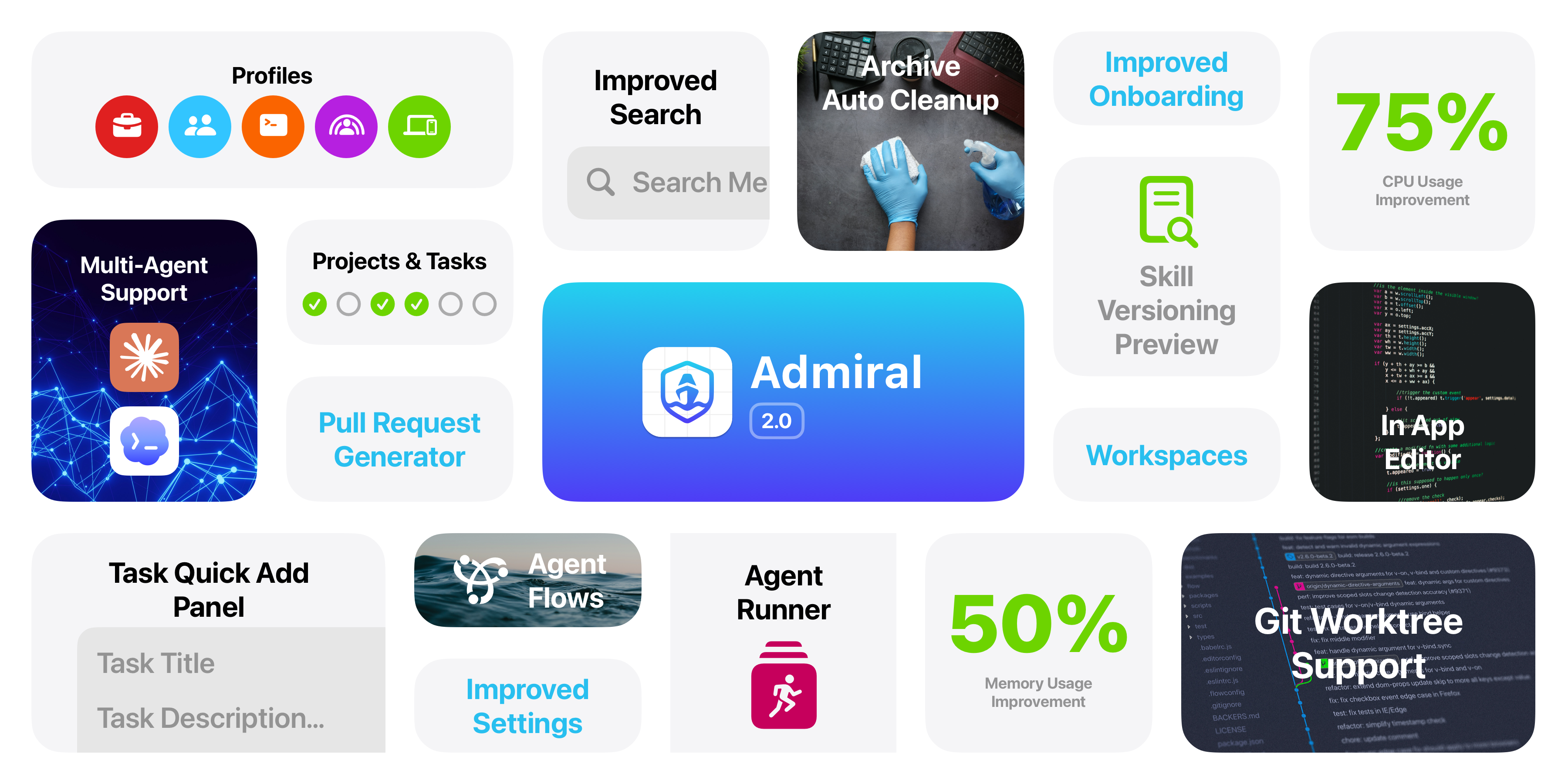
Admiral 2.0: One App, Every Branch, Every Agent
Most AI coding tools assume you work on one branch, with one agent, signed into one account. Real engineers ship four things in parallel, juggle a work identity and a personal one, and want a second opinion from a second model. Admiral 1.x got close to that reality. Admiral 2.0 is built around it.
This is the largest release we’ve ever shipped, and it rests on four pillars: Workspaces, Profiles, Multi-Agent, and Automation. Everything else, from end-to-end pull requests to a built-in issue tracker, exists to make those four pillars feel like one coherent app.
Workspaces: stop fighting your branch
A single chat tied to a single branch is the original sin of AI coding tools. Every “quick fix” stomps on the feature you were mid-prompt on. You stash, you swap, you re-prime context, and the agent loses the plot every time.
Workspaces fix this at the architectural level. Each workspace owns its own branch (or full worktree), its own active chat, its own terminal pane, its own inspector tab, and its own pull request metadata. You spin one up per feature, hop between them through a persistent native tab bar that’s always visible, and archive the ones you’re done with. The new worktree picker can branch off any local branch or remote ref, not just HEAD, with automatic tracking-branch creation.
The difference is the difference between “I tried four ideas today” and “I shipped four PRs today.” Each workspace is a sandboxed lane. Spin one up per ticket, never collide, never re-explain context to the agent.
Profiles: your work account and your side project, finally separated
One ~/.claude directory means one identity. Contractors mix client credentials. Anyone with a personal project pollutes their work usage with weekend tinkering. Switching accounts means CLI gymnastics nobody wants to do twice a day.
Multi-Profile Support lets you sign into multiple Claude Code accounts and flip between them from the sidebar footer. Each profile gets its own CLAUDE_CONFIG_DIR, so credentials, sessions, and projects stay separate. Pick a color and icon per profile, and it applies everywhere: the profile dot, workspace icons, port and terminal badges. Drag a project onto a profile dot to move it (with its chats) to that account. Admiral continuously probes claude auth status per profile and surfaces login state and account email in the header and in Preferences.
This is the kind of thing you don’t realize is missing until you have it, and then can’t go back.
Multi-Agent: Claude and Codex, side by side
Every model has a personality. Some refactors want Claude’s reasoning. Some grind tasks want Codex’s speed. Picking one for the whole app was always the wrong tradeoff.
Admiral 2.0 runs the Codex CLI alongside Claude through a unified AgentAdapter protocol. Pick the agent per chat tab and the right CLI launches with the right config dir. Each chat tab remembers its model and shows the agent icon directly on the tab. Codex login state and credentials are tracked per profile, mirroring the Claude setup, and signing into Codex during onboarding validates credentials before completing the step. The Claude model lineup also gets a refresh, with Opus 4.8 as the new default.
This is the first time you can run two frontier coding agents on the same project, in the same window, against the same git history. Pick the right tool per task, not per app install.
Automation Flows: the agent that supervises the agent
A single agent gets stuck, hallucinates a fix, declares victory, and you find out at code review. Manual back-and-forth is the bottleneck on every non-trivial task.
Automation Flows introduce a Coordinator chat that spawns Implementer and Reviewer subagents, configurable per-project or globally. Agent Definitions are reusable: system prompt, model, allowed tools, managed from a new Agents sidebar tool. Between phases, Quality Gates run scripted shell checks. A failed gate feeds a formatted message back into the Coordinator chat to drive the next iteration. Kick off a run from an issue’s inspector and a status banner shows the active phase, iteration count, and gate results. In-flight runs are bootstrapped on app relaunch, so a restart doesn’t lose progress. First launch even seeds a starter Implementer + Reviewer flow you can edit or duplicate.
This is how you delegate the boring part. Type the goal, walk away, come back when the tests pass and the reviewer signed off. The first real loop where the model is responsible for catching its own work.
Pull requests, end to end, inside the app
You finish a branch, you tab to the terminal, you gh pr create, you write a description, you tab back. The cost of leaving the app is paid hundreds of times a month.
The Changes tab now has a PR bar with Create PR and Create Draft PR buttons. Auto-fill uses the active agent to generate a detailed PR title and a markdown description with Summary, Changes, and Test Plan sections, in a live markdown editor. PR creation runs against the GitHub REST API with system git credentials (via git credential fill/approve/reject), so no gh CLI is required and it works out of the box. Linked PR status auto-refreshes, with a copy-link button next to the URL. PR URL, title, status, and draft state are cached on the workspace, so the inspector stays populated when offline or switching workspaces. A new Source Control tab in Settings adds an enable toggle, GitHub account management with live token validation, git author and email, global gitignore, and auto-refresh / auto-fetch / prefer-rebase options. The Changes tab toolbar picks up an ellipsis menu for Merge, Rebase, Stash, and Push.
From “I have changes” to “the PR is open” without leaving the window. The AI-written description alone saves five minutes per PR. The integration kills the rest.
Project Planner: where issues meet chat
Your tickets live in one tool. Your context lives in another. Pasting an issue body into chat is everyone’s least favorite ritual.
The new Project Planner is a full issue tracker. Create issues with a title, description, type, priority, due date, project-scoped labels, and milestones. Organize them on a kanban board with Backlog, Planned, In Progress, and Done columns. Each card visualizes priority with a four-segment cellular bar. Add checklist items to any issue and edit them inline with keyboard navigation. Link an issue to a workspace and the inspector adds Issue Detail and Plan tabs with bidirectional status sync.
The connective tissue is @task. Type @task in chat and the linked issue’s full context (title, type, priority, status, labels, milestone, due date, description, plan, checklist) gets injected into the prompt. It highlights indigo as you type and shows as a chip in the sent bubble. A system warning appears if the workspace isn’t linked. ⌘I opens a floating issue-creation window from anywhere in the app. The board reflows for narrow widths. A Finder-style collapsible search lives in the toolbar. Hover an issue card to cycle its status without opening it.
This is the missing layer between your roadmap and your agent. The plan is the prompt. The ticket is the brief. The agent finally has the full picture.
A real in-app editor and a smarter file navigator
Every time you needed to peek at or hand-edit a file in 1.x, you bounced to another editor. Drag a file onto a folder that already had one by the same name and you crossed your fingers.
Files now open into a native editor overlay with line numbers and a scrollable minimap. Drag-and-drop conflicts prompt to skip, replace, or keep both. A new Show Hidden Files preference toggles dotfile visibility, with .git and .DS_Store filtered consistently across git status.
Small, but it closes the last “I have to leave Admiral to do this” loop.
Chat that keeps up while it streams
Long agent responses stutter. Tool calls flood the transcript. Code blocks resize mid-stream. The input bar jumps around when permission cards appear. None of that should happen in a chat app, let alone the one you live in all day.
Code blocks now render in dedicated card views with syntax highlighting, copy buttons, and consistent sizing while streaming. Consecutive tool calls collapse into a single “X tools called” row with tool icons; expand to see each tool and its diff preview. Swipe the message list left, iMessage-style, to peek per-message timestamps. Markdown table columns are draggable to resize. The latest message and incoming permission cards stay pinned above the input bar, even when the input grows or a permission request arrives mid-stream. The chat input picks up undo support, tab-key navigation, and disabled smart-quote and smart-dash substitution.
The chat finally feels like a chat, not a log.
Skills with a real preview window
Version rows in the inspector get a hover ellipsis menu for Preview, Restore, Edit Label, and Delete. The version preview window is redesigned around a two-pane split that mirrors the main Admiral window: a material sidebar file list, headerView toolbars, edge-to-edge content, and read-only live markdown rendering for .md files.
Skill history is now browsable, not just restorable. Audit what you had, restore exactly what you want.
Onboarding that doesn’t break on a clean Mac
The most common 1.x install bug was EACCES during npm install -g @anthropic-ai/claude-code. Telling new users to fix their Node permissions was a non-starter.
The dependency check now installs Claude Code via the official native installer. No Node.js required. Existing nvm installs are detected and handled gracefully. Claude and Codex login flows run inside a PTY sheet inside Admiral, not in a Terminal bounce. Every onboarding screen now correctly switches backgrounds between light and dark mode. The “Get Started” button matches the capsule styling of the dependency-check screens and anchors to the bottom on every screen.
From download to first prompt in under two minutes, on a clean machine.
Settings, redesigned around projects
Settings now use a sidebar-based split view with edge-to-edge content and a collapsible detail inspector, replacing the old toolbar tab strip. Per-project settings are accessible from the sidebar context menu, the ellipsis menu, and the project overview toolbar, with a sheet to configure the project folder path, default branch for new workspaces, and remote origin URL. Pick an SF Symbol and accent color per project; both apply across the sidebar and workspace icons.
Archived chats now auto-clean on a configurable retention window with a clean AppKit picker. Action button settings are redesigned as a grouped card list with hover ellipsis menus (Edit, Duplicate, Delete), drag-and-drop reordering with spring animations, and a secondary sheet for edit mode that accepts multi-line scripts for multi-command workflows.
Performance and reliability
Every interaction is faster, and the app stays fast as your project gets bigger.
Streaming chat rendering picks up selective row reloads, batched SwiftData saves (down from 30 per second to 2), incremental content-height tracking, markdown renderer LRU caching, Highlightr instance caching, cheap height estimates while streaming, and exact sizing for tables and code blocks. The project overview loads hygiene panels off the main actor with a TTL cache; npm outdated and disk-usage queries are deferred to taps; the overview uses LazyVStack so projects with many workspaces scroll smoothly. Git status is batched, refresh races are coalesced, rename parsing is fixed, and already-staged files are filtered during commit. A new ChatActivityDay denormalization table caches per-day activity so the Pulse tool doesn’t scan every chat on every open, with backfill deferred so it doesn’t block launch. Workspaces no longer eagerly spawn terminals; sessions are created when the terminal panel is first shown, and the last session can be closed.
Under the hood, the internal refactor was the most ambitious in the app’s history. We fixed memory leaks in view controllers, added thread-safe session management, moved blocking git credential checks off the main thread, and hardened the Claude process bridge against buffer overflows and race conditions. SwiftData now logs save errors. The 1,400-line ChatSession was decomposed into focused modules. The 2,200-line Preferences window was split into per-tab files. The result is an app that’s not just faster today, but easier to keep fast as we ship.
Visual refresh
Admiral has a fresh app icon reflecting the updated brand identity. Workspace icons now use a squircle clip with project-color tinting. Permission questions open as a floating panel window instead of a modal sheet, so they don’t block the main window, and the question sheet’s material background sits inside the sheet for a cleaner edge. The Agents (sparkles) and Flows (bonjour) sidebar tools have dedicated icons; Pulse and Planner get refreshed assets.
The biggest visual change is invisible at first glance: a comprehensive migration to a unified ForgeButton, ForgePicker, and ForgeDatePicker set with consistent corner radius, hover, and disabled-state treatments across every surface in the app. The app feels coherent in a way it didn’t before. Less visual noise, more confidence in every click.
The shape of how you actually work
Workspaces give you parallelism. Profiles give you separation. Multi-agent gives you choice. Automation gives you leverage. Together, they make Admiral the first AI dev tool that scales with how you actually work, not the simplified one-branch-one-agent abstraction every other tool started from.
Admiral 2.0 is available now, free, for macOS 26.2 or later. Bring your existing Claude Code or ChatGPT Codex account, sign in with a new one, or stack both side by side.